Paycom
- 4.6
- Rating
- 5.00M
- Installs
- Free
- Price

 Analysis by App-foxy
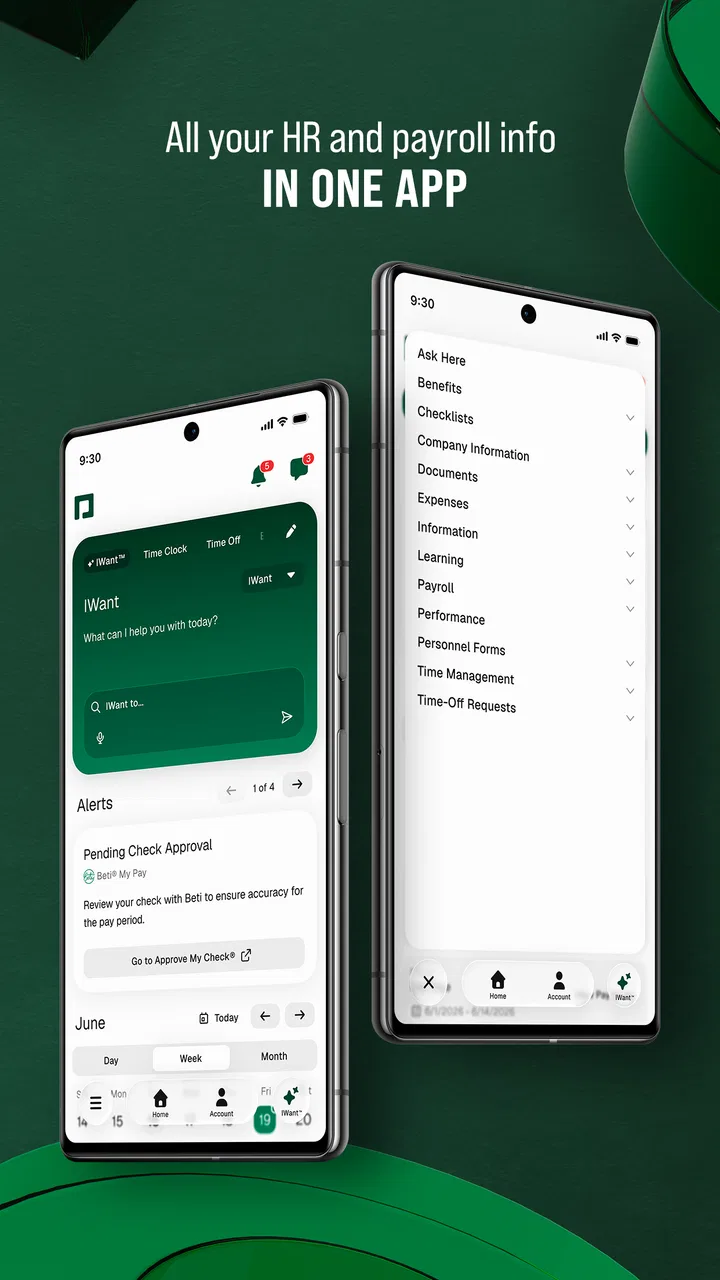
Paycom is the kind of app I appreciate most when I need a quick answer about work rather than another place to manage my personal life. Developed by Paycom Software, Inc., this free Tools app puts payroll and HR information into a mobile format, so I can check important employment details without waiting to reach a desktop. That sounds straightforward, but workplace apps are judged less by flashy design than by whether they help at the exact moment a pay, time, or employee-record question comes up.
My overall impression is that Paycom works best as a companion to an employer’s existing Paycom setup. It is not a general payroll calculator, a budgeting app, or a replacement for an HR department. Its value depends on the information and access connected to your workplace account. When that connection is ready, the app can make routine checks much more convenient. When it is not, the first challenge is often figuring out whether the problem is the app, the sign-in process, or the employer’s account configuration.
Where the first friction usually appears
The most common stumbling block with an employee app is not necessarily a broken screen. It is the boundary between the mobile application and the organization using it. Paycom is designed around managing your own payroll and HR data, which means the experience is tied to your employment relationship. A person downloading it without the right workplace access should not expect it to behave like a standalone service that creates a payroll profile from scratch.
You May Also Like

 Blood Strike: 2.5 Anniversary
Blood Strike’s Loadouts Turn Every Drop Into a Tactical Gamble
A close look at Blood Strike’s custom loadouts: how fast access to signature weapons reshapes its battle royale rhythm, rewards preparation, and narrows the gap between fights.

 Pandora - Music & Podcasts
Pandora’s Music Is Easy to Start, but Harder to Recover
Pandora’s strength is its low-effort path from a seed to a station. Its weak spot is how much confidence it asks you to place in connection, setup, and quiet recovery.

 8 Ball Pool
 Is Built on Rivalries, Rematches, and Routine
A close look at the rivalries, rematches, shared routines, and unanswered safety questions that turn a quick pool match into a persistent mobile community.

 Samsung Music
’s Quiet Strength Is Playing What You Already Own
Its reach comes less from spectacle than from dependable access to a personal library. That simplicity is both the app’s strongest retention engine and its ceiling.

 AccuWeather: Weather Radar
AccuWeather Review: A Quick, Clear Forecast for Everyday Decisions
For everyday plans, the best forecast is the one you can understand quickly. AccuWeather makes rain timing, radar, and local conditions easy to act on, with a few trade-offs.

 Hill Climb Racing
Why Hill Climb Racing Still Turns Crashes Into One More Run
A tiny car, a bumpy hill and one more upgrade: Hill Climb Racing keeps resurfacing because its simple chaos makes every near-miss feel personal.
More From Our News Desk



I would start by treating the sign-in stage as an account check, not just an app check. Use the credentials and sign-in route supplied by your employer, and make sure you are entering the information for the correct organization if your work arrangement involves more than one employer or account. A failed login can be caused by an incorrect username, an outdated password, an incomplete activation step, or an account that has not yet been enabled for mobile access.
Another source of confusion is expecting every payroll or HR item to appear in the same way for every employee. What I can view depends on how the employer uses Paycom and what information has been made available to my account. If a particular record, option, or action is missing, repeatedly reinstalling the app is unlikely to add it. The sensible next step is to ask the workplace administrator whether that item is part of the organization’s Paycom configuration.
The app has been available since May 30, 2017, and its current version is 7.0.34. That history suggests a mature product rather than a newly launched experiment, but maturity does not remove the need for a clean setup. Updates can change the way a screen looks or how a sign-in step is presented, so I would avoid relying on old instructions from a colleague if the current screen no longer matches them.
What to check before blaming the application
My first check is the device itself. The listed minimum operating-system requirement is 10, so I would confirm that the phone meets that requirement before spending time on account troubleshooting. I would also install the current version available for the device rather than assuming an older copy will work correctly with a changing workplace service.
Next, I would check the basics that affect any account-based app: a stable internet connection, accurate device date and time, enough free storage for an update, and the ability to receive any sign-in communication required by the account. These are simple checks, but they matter because a payroll app may appear unresponsive when the real issue is a connection that drops during authentication.
I also recommend closing the app completely and opening it again after switching between Wi-Fi and mobile data. This is not a cure for an account problem, but it helps separate a temporary connection failure from a persistent access issue. If the same error remains after a clean restart and a reliable connection, I would record the wording of the message instead of repeatedly guessing at passwords.
Security matters more here than convenience. I would not test the account on a shared phone or enter employment credentials into an unofficial copy. Paycom handles sensitive payroll and HR information, so keeping the device locked and avoiding credentials saved in places other people can access is a sensible habit. The app is rated for Everyone, but that age label does not mean payroll information is casual or harmless if exposed.
A setup routine that saves time later
Once access works, I would spend a few minutes learning where the information I check most often is located. The goal is not to explore every screen at once. It is to build a small routine: open the app, locate the relevant payroll or HR area, verify that the displayed information belongs to the current employment account, and then leave. This reduces the chance of making a rushed change simply because I am still trying to understand the navigation.
I would also make a note of the employer’s preferred support route. An app can display workplace information, but it cannot independently correct a payroll record that was entered incorrectly by the organization. Knowing whether to contact a manager, payroll team, HR administrator, or Paycom support channel prevents a lot of circular troubleshooting.
One useful habit is to compare a mobile record with a known workplace document when something looks unusual. For example, if a pay-related detail seems different from what I expected, I would first check the pay period and employment account before assuming the app changed anything. A mismatch may be a timing issue, a newly processed update, or an employer-side correction still moving through the system.
That distinction is important: viewing information and changing information are not the same task. I would read the labels carefully before confirming any action. If the app presents a choice that affects employee data, I would avoid tapping through quickly, especially on a small screen. Mobile convenience is helpful, but it also makes accidental confirmation easier when I am distracted.
Recovering a workflow when something goes wrong
My preferred recovery method is gradual. First, I identify the exact point of failure: opening the app, signing in, loading a section, viewing a record, or completing an action. Then I repeat only that step after checking the connection and restarting the app. This is more useful than deleting everything immediately because it preserves clues about what is actually failing.
If the app opens but a page does not load, I would try again later after confirming the connection. If the app closes or behaves strangely, I would update it and restart the device. If the problem is limited to one employee record or one workplace action, I would contact the organization’s administrator with the screen name and the time of the failed attempt. That gives the administrator something concrete to investigate.
I would be cautious about clearing local app data or reinstalling as a first response. Those steps can remove local session information and may force another activation or sign-in without fixing an employer-side issue. Reinstallation is reasonable when the installation itself appears damaged, but it should come after noting the sign-in details and confirming that I can access the account again.
For a realistic example, imagine I am checking a payroll detail before a personal bill is due. The page does not load, and I immediately assume the number is missing. A better sequence is to verify the internet connection, reopen the app, check whether another section loads, and then try again later. If other sections work but that specific information remains unavailable, I would ask payroll whether the record is still being processed. This avoids making a financial decision based on an incomplete screen.
Another practical scenario is changing phones. I would not wait until payday to discover that the new device needs an activation step or fresh sign-in. I would complete the transition when I have time to contact the workplace administrator if necessary, then confirm that the main payroll and HR information I rely on is visible. This is a small preparation step, but it can prevent avoidable stress during a time-sensitive check.
When the app is not the cause
Payroll information is created and maintained within an employer’s process, so not every discrepancy belongs to the mobile app. A delayed update, an incorrect employee record, a changed work arrangement, or an organization-side configuration can all produce an experience that looks like a mobile problem. The app may simply be showing the information it receives.
I would contact the workplace administrator when the account cannot be activated, the wrong organization appears, a specific record is consistently absent, or an action that should be available is not offered. I would contact the app’s support route when the same issue affects the application itself, such as repeated crashes or a sign-in failure that persists after the account details and device checks are complete. In either case, a screenshot that excludes sensitive information and a precise description of the steps can make the conversation more efficient.
I would also avoid relying on unofficial fixes that ask for employment credentials or promise access to restricted information. A payroll app is not the right place to experiment with unknown tools. The safest troubleshooting is boring but effective: use the official installation, keep the device updated, protect the account, and escalate account-specific issues to the organization responsible for them.
How it compares with ordinary alternatives
Compared with checking payroll and HR information through a desktop browser, Paycom is more convenient when I am away from a computer or need a quick mobile check. A browser can be preferable when I need a wider view, when a form has many fields, or when I am reviewing several pieces of information side by side. I see the app as a faster access point, not automatically the best environment for every detailed task.
Compared with asking a manager or HR colleague for every answer, the app can reduce unnecessary back-and-forth for information already connected to my employee account. That is its strongest practical advantage. It gives me a direct place to look instead of turning a simple check into a message and a wait. The trade-off is that it cannot replace human help when the underlying record is wrong or an employer-specific option has not been enabled.
Compared with a personal finance app, Paycom serves a different purpose. A budgeting tool may help me plan spending, but it does not act as my workplace payroll and HR access point. I would use Paycom to inspect employment-related information and a finance app to organize my broader money habits. Trying to make one substitute for the other would create confusion about where the authoritative record lives.
The app’s broad adoption also gives it a reassuring level of familiarity: it has more than five million installs, carries a 4.6 average from roughly one hundred fifteen thousand ratings, and has around twenty-eight thousand written reviews. Those figures do not guarantee a perfect experience for every employer, but they do indicate that this is an established tool rather than a niche experiment. I still judge it by whether my organization has configured it well and whether the mobile workflow suits my needs.
Who should use it, and who should skip it
I would recommend Paycom to employees whose organizations already use Paycom and who want convenient access to their own payroll and HR information from a phone. It is especially useful for people who travel between workplaces, work away from a desk, or regularly need to check employment details without opening a computer. The free price removes one obvious barrier, and the Everyone rating makes it approachable for a broad audience.
I would not recommend downloading it with the expectation that it will provide payroll services independently. It is also not the right choice for someone looking for tax planning, personal budgeting, or a general employee-record system unrelated to an employer’s Paycom account. In those situations, a dedicated finance tool, a browser-based workplace portal, or direct HR assistance may be a better fit.
My main criticism is that the app’s usefulness can feel opaque when access or data depends on employer configuration. A person may see a mobile interface but still need an administrator to resolve the real issue. That is not necessarily a flaw in the app’s display, but it does affect the feeling of independence. I also think users should approach sensitive actions carefully on a small screen and avoid assuming that an absent item is proof of a technical failure.
On the positive side, the focused purpose is a strength. Paycom does not need to compete with every type of productivity or finance app. When I need a direct route to workplace payroll and HR information, a dedicated app is more practical than searching through email or waiting for a response. The best results come from treating it as one part of a larger employer system rather than as a self-contained payroll office.
My practical verdict
After looking at the complete workflow, I see Paycom as a useful, purpose-built mobile companion for employees whose workplaces rely on Paycom Software, Inc. It can make routine payroll and HR checks quicker, and its free availability makes trying it easy. The current version, 7.0.34, should be approached like any account-based workplace tool: keep it current, protect access, and confirm that the phone meets the minimum operating-system requirement of 10.
The key lesson is to separate app trouble from account trouble. Check the device, connection, installation, and sign-in process first. If one record or workplace action remains unavailable, move the question to the employer administrator instead of repeatedly reinstalling the app. That approach saves time and protects you from making assumptions about important employment information.
I would choose Paycom when my goal is quick, direct access to workplace data already connected to my account. I would choose a browser or speak with HR when I need a broader review, a correction, or help with an employer-specific process. In that role, Paycom is not a replacement for payroll staff or a personal finance manager, but it can be a genuinely useful everyday tool. For the right workplace setup, Paycom earns a place on my phone because it reduces small delays without pretending to solve problems that belong elsewhere.
FAQs for Paycom
01What is Paycom, and what services does it offer?
Paycom is a comprehensive human capital management (HCM) software solution designed for businesses of all sizes. It offers various services, including payroll processing, talent acquisition, time and labor management, and HR management. By integrating all these services into a single platform, Paycom aims to streamline HR functions and improve overall efficiency for organizations.
02Is Paycom suitable for small businesses, or is it only for larger enterprises?
Paycom is designed to cater to businesses of all sizes, from small startups to large enterprises. Its scalable options allow businesses to choose features that best fit their needs, ensuring that even smaller businesses can benefit from its robust functionalities without overwhelming complexity or cost. The platform's versatility makes it adaptable to various organizational requirements.
03How does Paycom ensure the security of sensitive employee data?
Paycom employs advanced security measures to protect sensitive employee data. These include encryption, secure data centers, and regular security audits. The platform is compliant with various industry standards and regulations, such as GDPR and SOC 2, ensuring that user data is safeguarded against unauthorized access and breaches, providing peace of mind for users.
04Does Paycom offer customer support if I encounter any issues?
Yes, Paycom provides extensive customer support to help users with any issues. Support options include a dedicated account manager, 24/7 customer service, and an online help center with resources and tutorials. This ensures that users can quickly resolve any problems and fully utilize the platform’s features efficiently.
05Can Paycom integrate with other software tools my company uses?
Paycom is designed to integrate seamlessly with various third-party applications and software tools commonly used in businesses. This includes accounting software, benefit providers, and other HR systems. These integrations help ensure a smooth workflow by allowing data to be easily transferred between platforms, reducing manual entry and potential errors.
Pros
- User-friendly interface enhances navigation.
- Robust security features ensure data safety.
- 24/7 customer support available for assistance.
- Seamless integration with existing systems.
- Comprehensive reporting and analytics tools.
Cons
- Initial setup can be time-consuming.
- Limited offline functionality.
- Some features require premium subscription.
- Occasional bugs in mobile version.
- Learning curve for advanced features.

Paycom
Gallery